
Top 4 Ways to Turn Reddit Engagement into AI-Driven Lead Generation
Capture your audience’s attention and convert them into quality leads by leveraging these AI-driven Reddit SEO best practices.
Updated March 19, 2026

Learn how to make a group chat on Snapchat so you can talk with all of your friends at once. Plus, we answer your questions about how to manage the group chat.
Over 470 million people use Snapchat daily, making it one of the most popular social media platforms in the world.
Being able to chat with multiple people or ‘Snapchatters’ — whether they’re friends, colleagues, or customers — is a big part of the appeal of Snapchat and other social media apps.
Looking for a Social Media Marketing agency?
Compare our list of top Social Media Marketing companies near you
Whether you have an iPhone or Android, here is how you can create a group Snapchat with your friends’ list.
Interested in advertising your business on Snapchat? Check out our list of Snapchat marketing agencies.
To make a Snapchat group, you first need to open the app. If you don’t already have the Snapchat app, you’ll need to download it for the Apple App or Android App store and set up your account.
Additional resource: Download Snapchat here.
Once the photo screen pops up, you’ll see a horizontal menu along the bottom. Click on the messaging chat icon that looks like a text bubble.
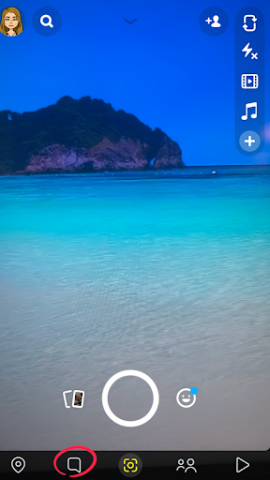
This will take you to a chat screen where you can view messages and Snapchats you’ve already sent to your friends.
On the bottom right, you will see a bright yellow icon just above the menu bar. This is the “New Chat” function.

By clicking on this chat button, you’ll be able to start a new chat with one of your friends or create a new group chat.
Then tap on “New Group” if you want to indicate that you want to add more than one person or a group of friends to the chat.
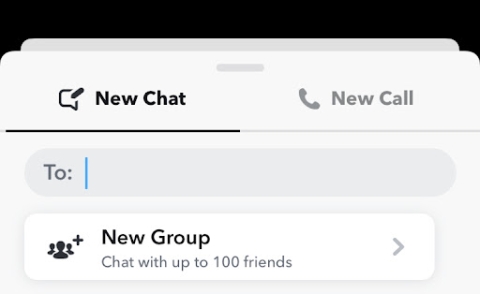
This will bring you to the page where you will be able to create a Snapchat group.
To keep your group chats straight, you may want to rename your group chat.
To do so, simply click on the top bar that says “Group Name.” Then you can come up with a descriptive group chat name or something clever that clearly explains what it’s about to everyone in the group chat. You can also edit group names at any time in chat settings.

To rename a group on Snapchat, you just tap “edit group name” and click “save.” Anyone in the group can change the name, not just the creator.
When the name changes, everyone in the chat will see a notification that the group name was updated.
Additional reading, ‘105 Clever And Punny Names for Your Snapchat Group.’
At this point, you can add new members to the group chat. You can either search for your existing friends by scrolling down through your contacts list, or you can use the search bar to find them quickly.

However, at this point, you can only add friends you already have. If you would like to add new people to your group, you will have to friend them first.
How to Find Snapchat Friends
Additional reading, ‘How to Find Someone on Snapchat.’
Once you find the friends you want to add to your group chat, click on each of their usernames to add them to the group.
Finally, tap the blue button that says “chat” to create the group.

Once the group chat is live, you’ll be able to have a conversation with all of your friends, send Bitmojis, snap pictures, and other group options for fun!
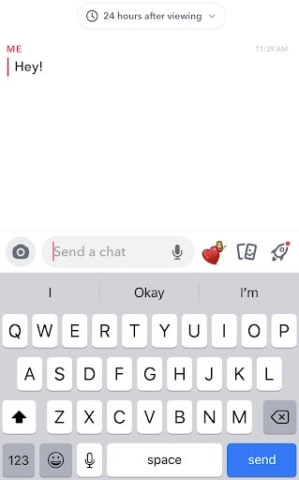
Only people in the group chat can see the messages. All of these messages will be saved for up to 24 hours, but will then disappear. If the message isn’t opened, Snapchat will delete it after a week, but users can adjust these settings to their liking.
If you want to save a specific message or chat with your group, tap chat and hit save.
If new members are added to the chat, they can’t see messages sent before they joined.
View more information about how to use Snapchat and its features here.
New to Snapchat Groups? Here are answers to a few questions you might have about the popular social media platform.
Snapchat does not allow people to remove friends from a chat group. To get someone to leave the group chat, the admin has to ask them to leave, block the user, or let the group expire. Alternatively, they can start a new group without the person they wish to leave.
There can be up to 200 people in a Snapchat group. Get ready all of the message notifications.
To leave a Snapchat group, click the group icon in the top-left corner of the group chat. Then, tap on the three dots in the top right corner. Then, a menu will appear at the bottom of the screen. Click “Leave Group.”
Only admins can delete a group chat. To do so, go to chat settings and click the group icon in the top-left corner of the group chat. Then select tap on the three dots in the top right corner. Then, a menu will appear at the bottom of the screen. ”Then select “Delete Group” to permanently delete the group chat.
To mute notifications, open the group and click on the Bitmoji icons in the top left corner. Then select “Settings.” Another menu of options will appear, where you can click on “Do Not Disturb” to mute notifications without leaving the group.
In Snapchat group chats, members can communicate in several ways and use many of the app’s interactive features. Along with sending snaps, members can send voice messages, start video calls, send Bitmojis and other animations, post screenshots, and mention friends directly using @ in the chat.