
Building an AI App in 2026: Practical Guide to Data, Architecture & Deployment
A practical guide to building AI-powered apps in 2026, covering data pipelines, system architecture, testing, and real-world deployment strategies that...
Updated April 10, 2026

Every app developer must be aware of the app lifecycle for their particular app. Every iOS application can pass through five states of an iOS app lifecycle after launch. Discover all aspects of an iOS app lifecycle. To ensure an efficient end user experience, all development teams must understand a mobile application’s life cycle.
For iOS developers, it is important for their teams to involve themselves in all different stages of an iOS app lifecycle. An iOS app lifecycle involves each state a mobile app goes through between launch and termination. The five states include not running, inactive, active, background, and suspended. Source
Looking for a Mobile App Development agency?
Compare our list of top Mobile App Development companies near you
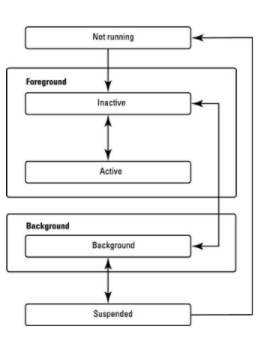
The current state of an app determines what it can and cannot do at any time. This article will dive deeper into the five states of an iOS app lifecycle and the importance of having a capable development team that knows its in’s and out’s.
The first state of an iOS app lifecycle is the “not running” stage. Within this state, the app has either not yet launched or has been terminated by the system or user. For example, if a user has closed out of their social media app, it would be in this stage. The system classifies an app as 'not running' if it has not been launched, or if the user manually force-quits the application. By launching the app, users can quickly get out of this stage and move to the foreground with the next state.
When an app starts, it transitions through a short state while the app’s information loads. The inactive state is where the app is actually running, but it is performing other functions that make it not ready to accept any user inputs or events. For example, temporary interruptions such as incoming phone calls, messages, or system overlays trigger the inactive state. This state is also where the app enters the “foreground.” 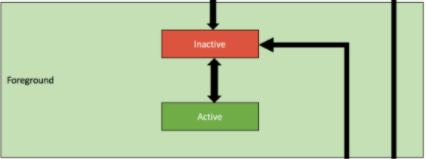 Source
In the foreground, the app has the user’s attention, making it a priority over other apps or functionalities within the system. When the app is “fully launched,” it will enter its main phase for active users.
The Active state is characterized by the application running in the foreground and receiving user events. It is the primary execution state where the UI is fully responsive to gestures, inputs, and sensor data. The app is still in the foreground, capturing all of the users’ attention. In this phase, it can complete any buyer journeys or other events relevant to the mobile app. Once the swiping ends and user attention is lost, the app enters a new mode.
Before being fully suspended, the app enters the background state. 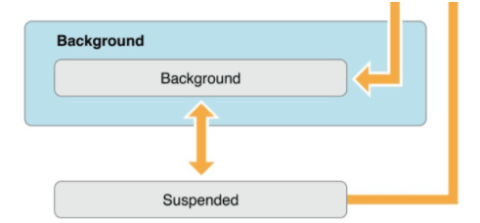 Source In this background state, the app is allowed to continue executing code without a visible UI. However, developers must be mindful of the strict 5 to 30-second execution limit imposed by iOS before the app is moved to the suspended state.
The suspended state is when the application remains in memory but is unable to execute any code. It occurs a little while after the app is in the background state, typically taking about five seconds for this change to happen. The system moves the app to this state without providing any notification.
Crucially, if the system encounters memory pressure, it will purge suspended apps without notice to reclaim memory for a current foreground application. To manage your mobile app’s lifecycle effectively, developers must implement robust state restoration logic so users can return to their exact previous context.
Since the release of iOS 13, the app lifecycle has evolved to support multiple windows through the UISceneDelegate. In 2026, understanding the distinction between the UIApplicationDelegate and the scene delegate is vital for modern development.
The UIApplicationDelegate remains responsible for global, process-level events, such as didFinishLaunchingWithOptions and applicationWillTerminate. Meanwhile, the UISceneDelegate handles UI-specific lifecycle events, utilizing methods like sceneWillEnterForeground, sceneDidBecomeActive, and sceneDidEnterBackground.
For teams utilizing the SwiftUI App Lifecycle, state management is streamlined further. Developers can monitor the scenePhase environment variable—which includes possible values like active, inactive, and background—directly within the @main struct to trigger appropriate lifecycle responses.
Knowing exactly when the system calls your code, what state transitions look like, and where to hook in your setup and teardown logic directly affects your app's reliability, performance, and resource management. The better you understand the lifecycle, the fewer subtle bugs you ship.